
Installation & Setup
Setup iPhone for GhostMe
Open GhostMe and Login. Setup opens by itself and shows one screen at a time. A screen your iPhone has already done is skipped.
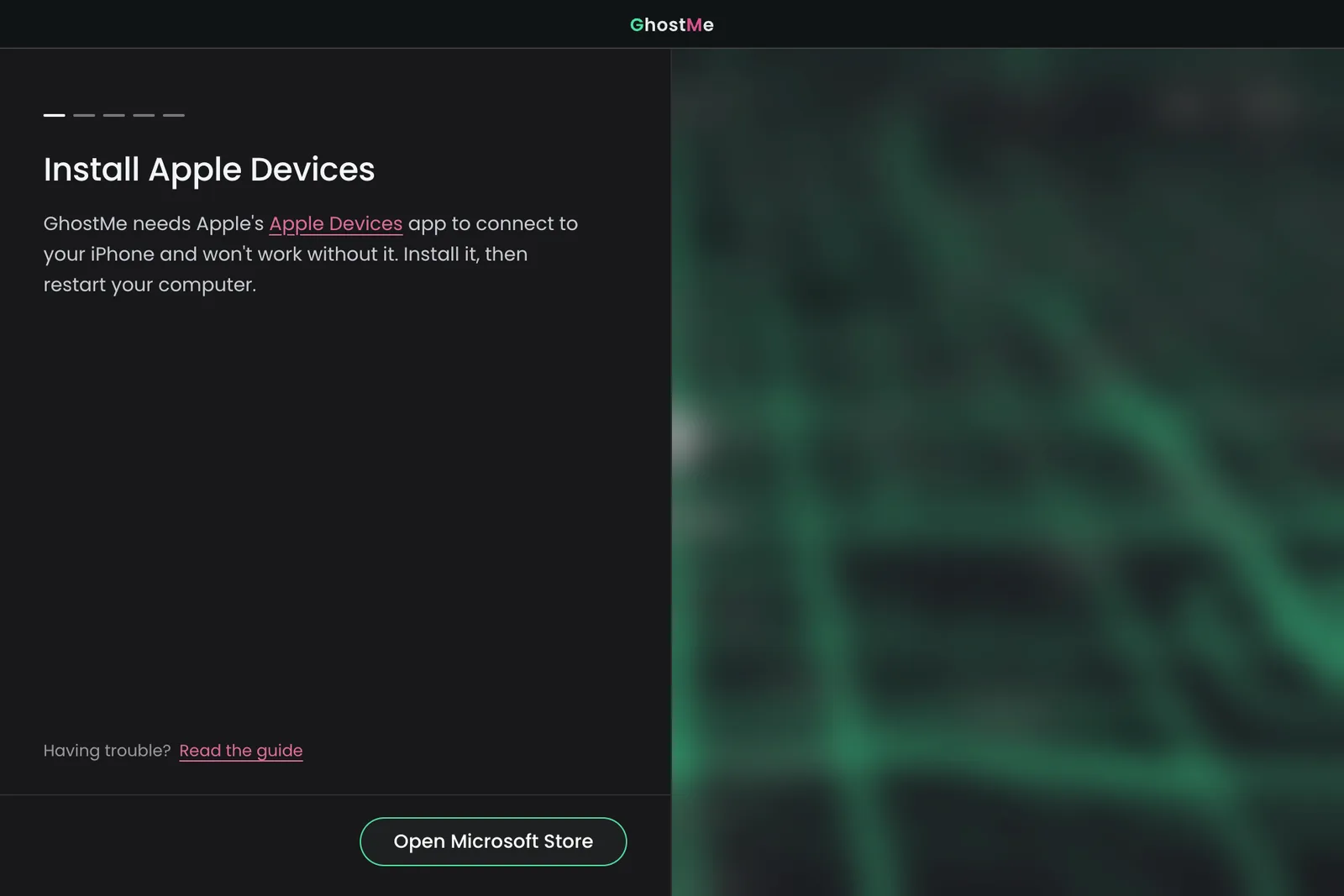
1. Install Apple Devices (Windows only)
Click Open Microsoft Store, install Apple Devices, then restart your computer. On a Mac, setup starts at step 2.
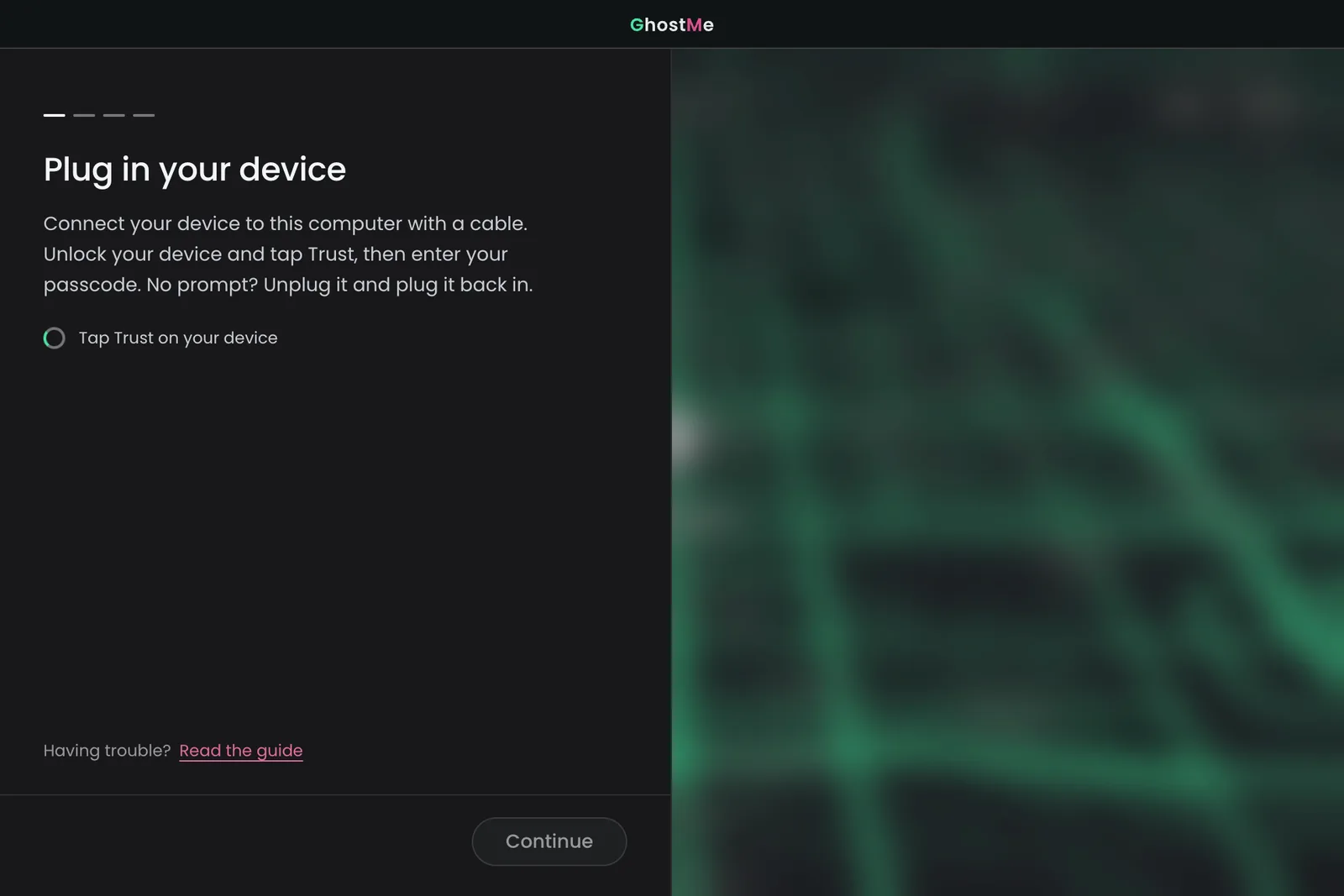
2. Plug in your device
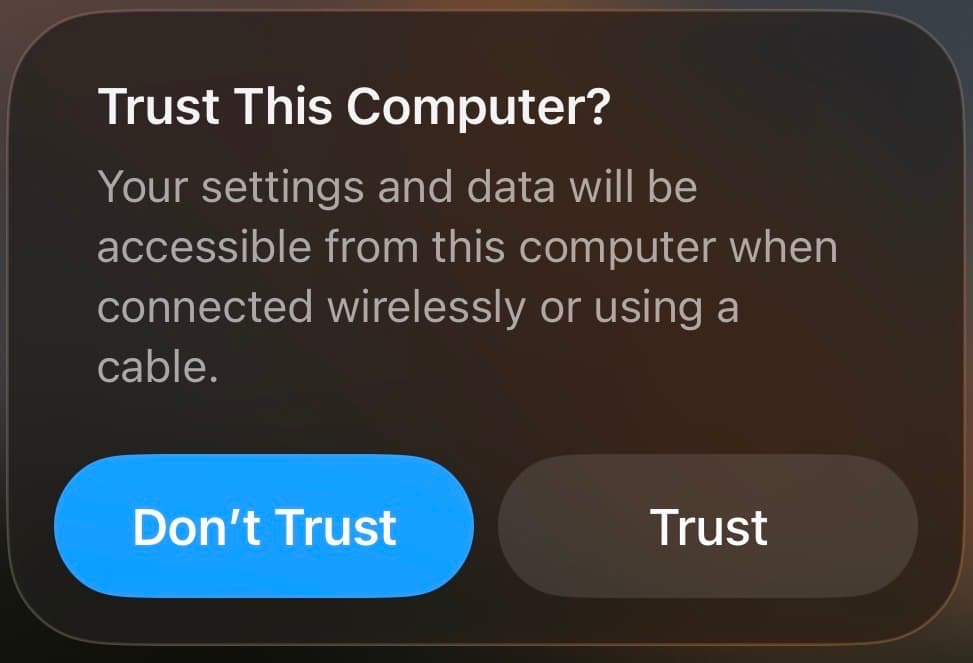
Plug your iPhone into your computer with a USB cable and unlock it. On your iPhone, tap Trust and enter your passcode.
3. Unlock your device
Shows only if your iPhone is locked. Unlock it and keep it unlocked.
4. Turn on Developer Mode
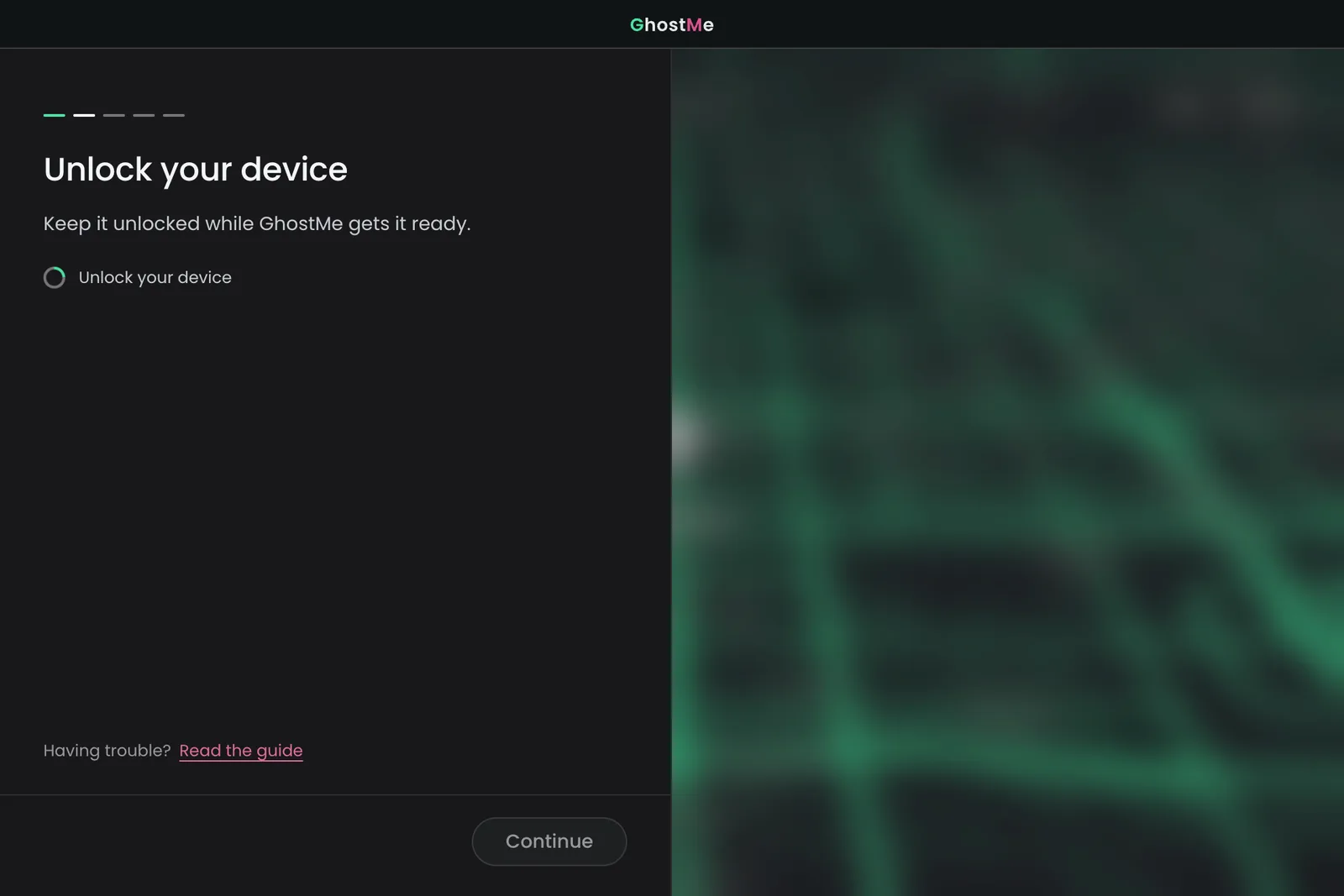
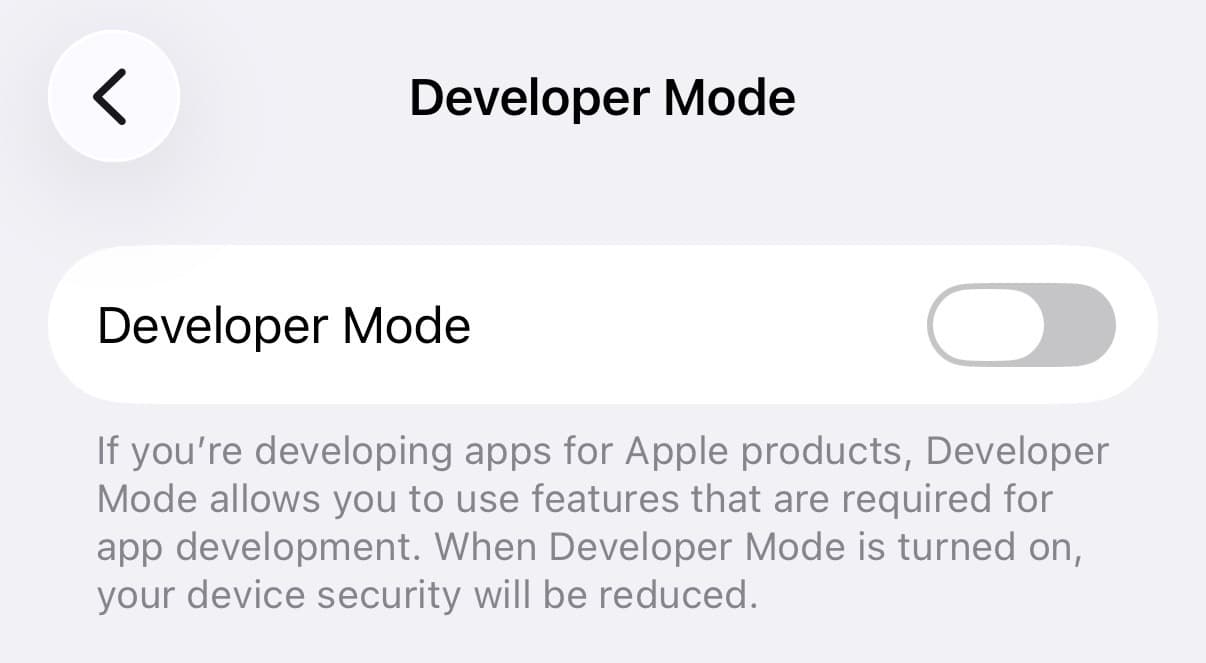
On your iPhone, open Settings > Privacy & Security > Developer Mode and turn it on.
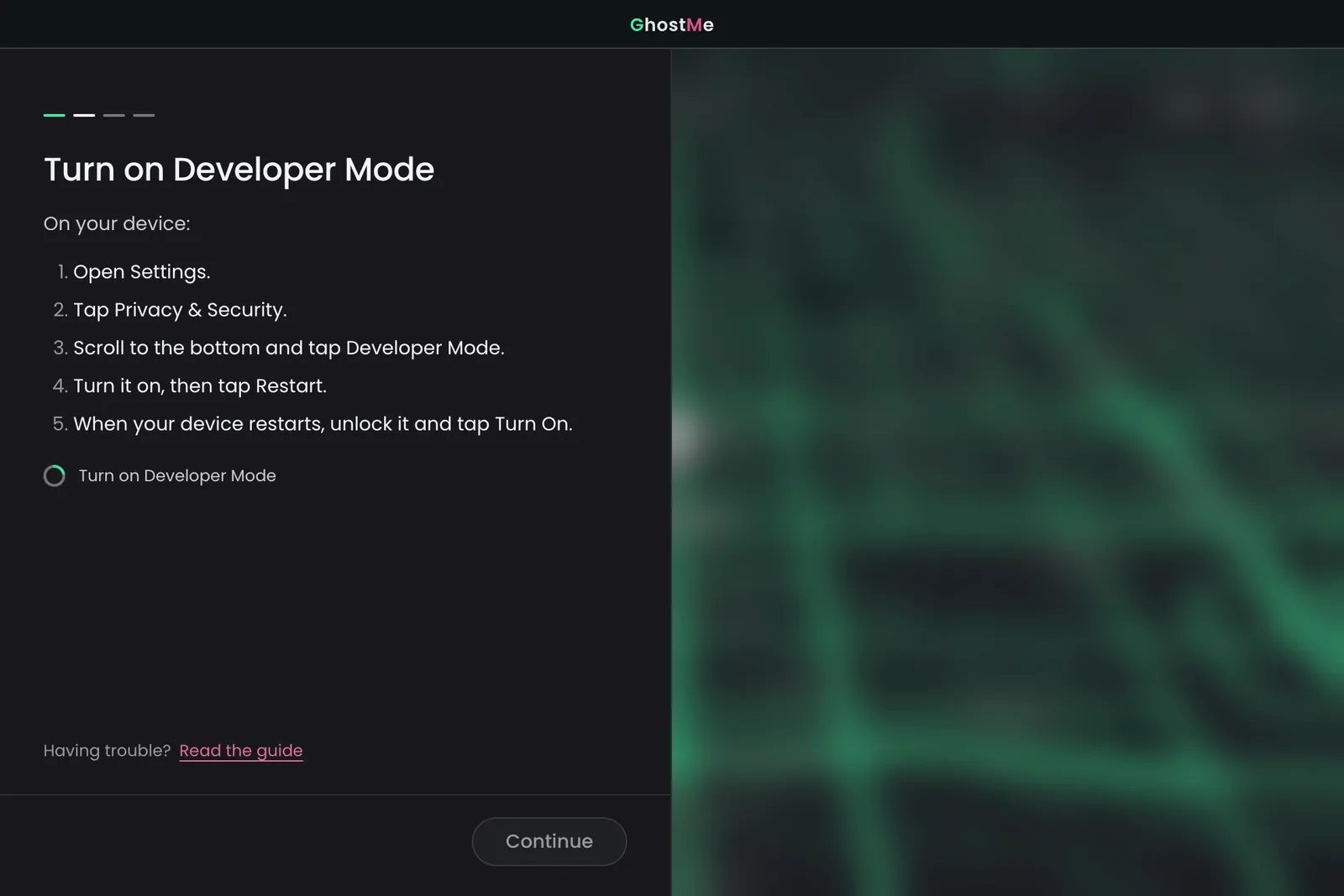
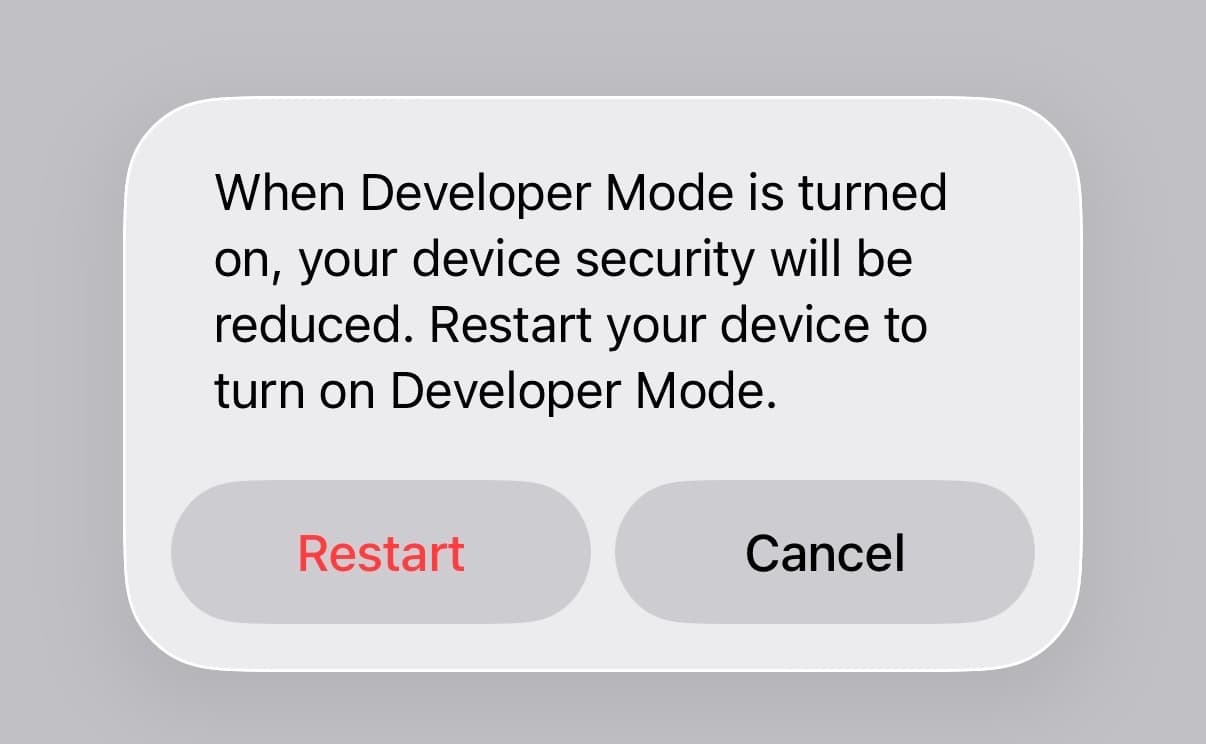
Tap Restart and keep your iPhone plugged in. When it turns back on, unlock it, tap Turn On and enter your passcode.
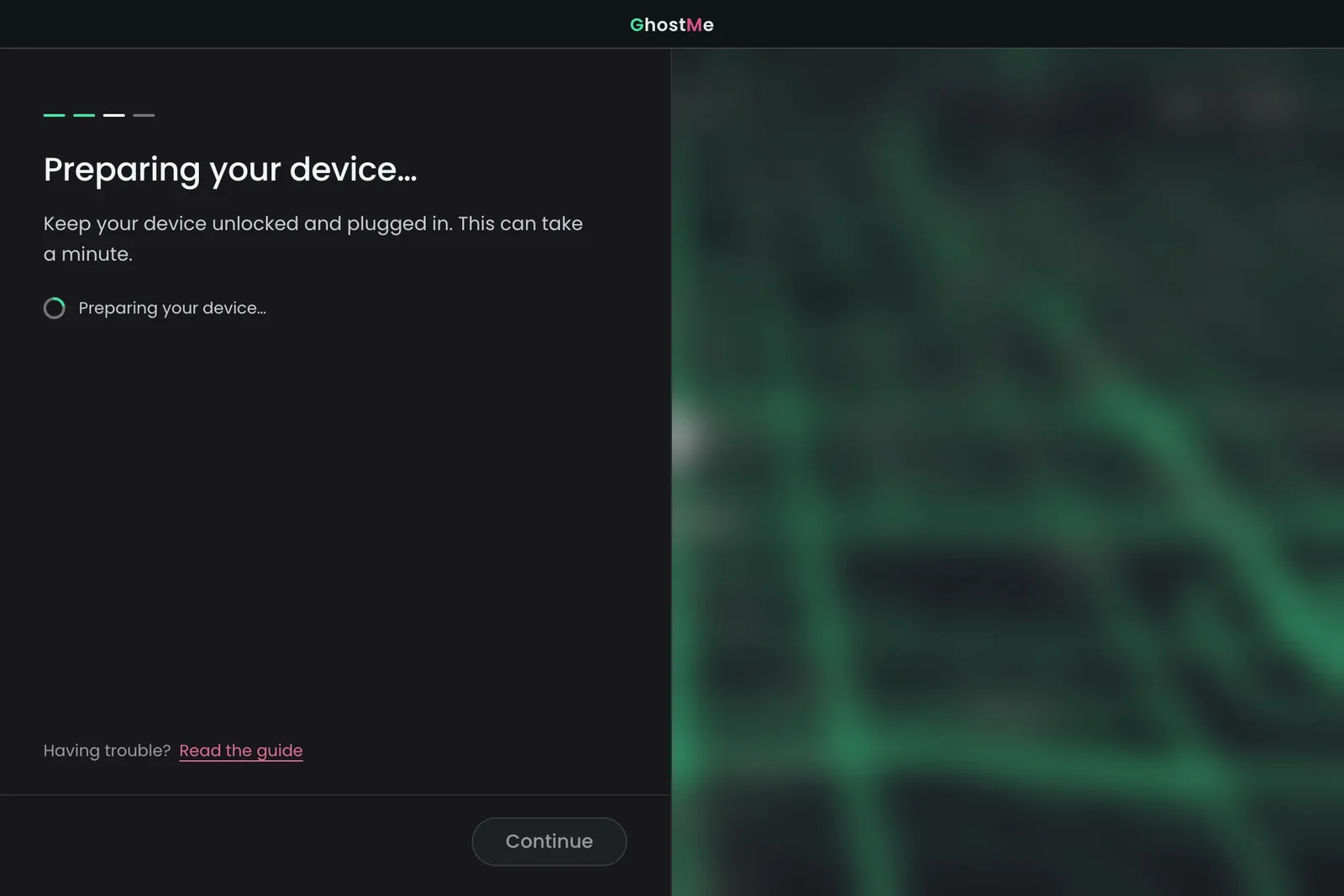
5. Preparing your device
GhostMe gets your iPhone ready by itself. Keep it unlocked and plugged in. This can take a minute.
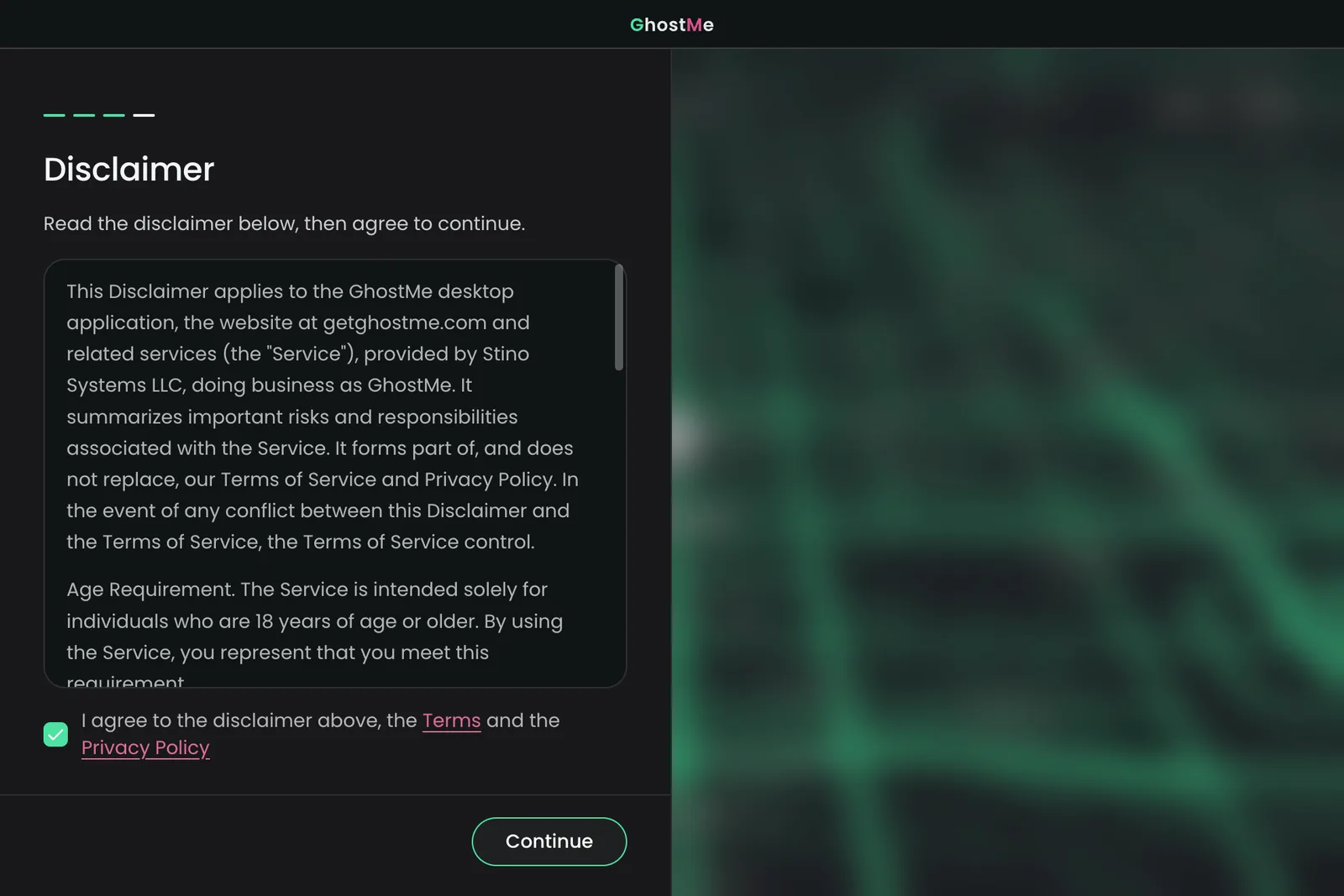
6. Disclaimer
Read the disclaimer, tick the box, then click Get Started to open the map.
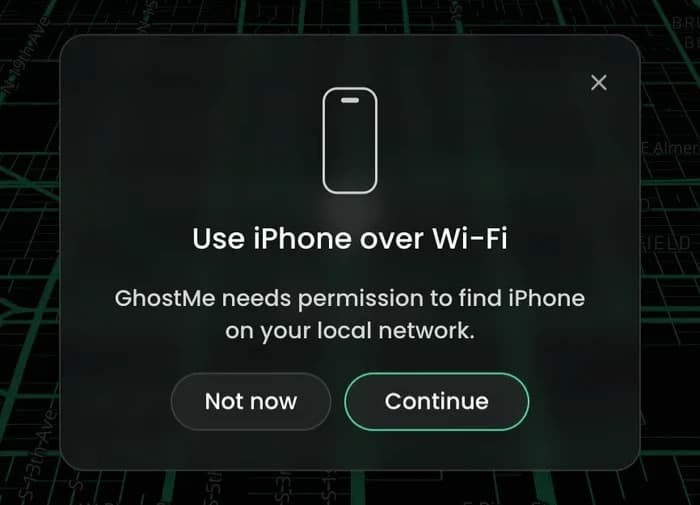
To change your location without a cable, click Continue, then Allow on a Mac. Your iPhone and computer need to be on the same Wi-Fi.
Done
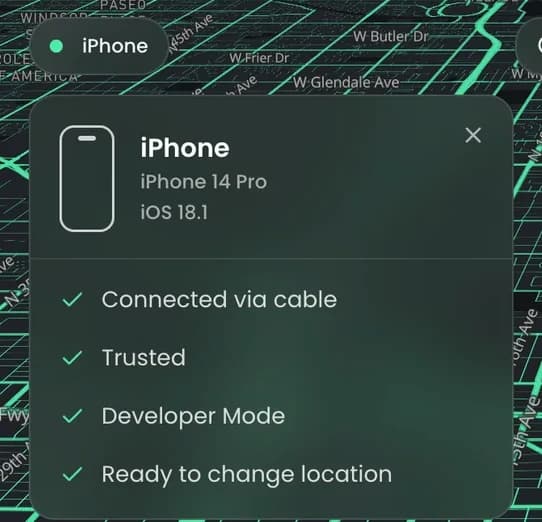
The device pill at the top left of the map shows your iPhone with a green dot. Click it to see Ready to change location.